If you encounter any issues with your service, please don’t hesitate to call or text us at 902-218-8550 (texting is preferred) or email us at support@redsandsinternet.ca.
Before reaching out, we recommend restarting your router to see if this resolves the issue. To restart your router, simply unplug it from its power source for about 15 seconds and then plug it back in again. As a best practice, it’s also a good idea to restart your router at least once a month.
Additionally, please be mindful of which ports the Ethernet cables are connected to on your router. These cables are plugged into specific ports, and unplugging them may disrupt your service.
Important: Never press the reset button on a router we have configured for your home. Doing so will erase all required settings and could result in a service call and additional charges.
Steps to connect your own router
To connect your own router please follow the instructions as outlined below.
- The Ethernet cable that goes outside to the antenna should be plugged directly into the port labeled POE in the power supply as shown here:

That will power up the antenna and after a couple of minutes the antenna will reconnect and then there will be internet access using the LAN port of the power supply.
At that point you would follow the instructions to set up your new router and when asked you would connect your new router into the port labeled LAN of the power supply. If prompted, be sure to configure your new router in ROUTER mode. The type of network connection is Automatic or DHCP.
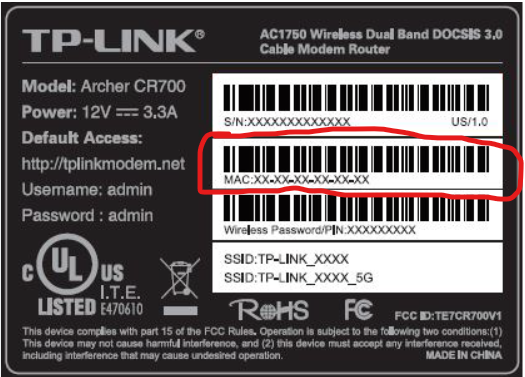
*Please note – whenever you do this please send a picture showing the MAC address, make and model of your new router. This information can usually be found on the bottom of the router.
MAC Address example